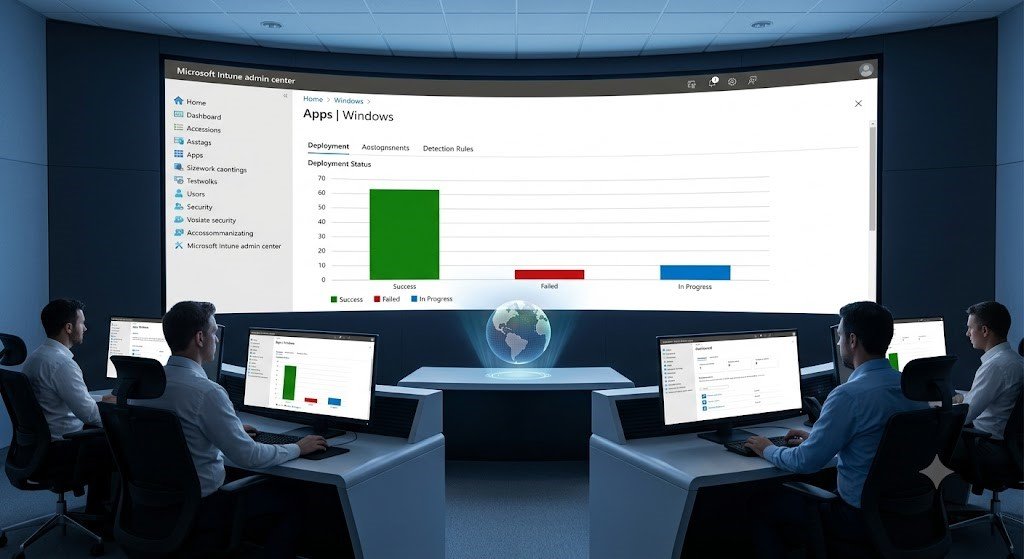
What is a Win32 Application in Intune? How to Deploy It and Troubleshoot Installation Failures
Introduction
Managing Windows applications across multiple devices can quickly become challenging, especially in modern organizations with remote and hybrid work environments. Microsoft Intune simplifies application deployment by allowing IT administrators to package, deploy, monitor, and manage applications from a centralized cloud-based platform.
One of the most powerful application types supported by Microsoft Intune is the Win32 application. Unlike Microsoft Store apps or built-in Windows applications, Win32 apps allow administrators to deploy traditional desktop software such as Google Chrome, Adobe Acrobat Reader, Notepad++, Visual Studio Code, 7-Zip, and many other enterprise applications.
In this guide, you’ll learn what a Win32 application is in Intune, why organizations use it, how to prepare and deploy a Win32 app step by step, and how to troubleshoot common installation failures. Whether you’re new to Microsoft Intune or looking to improve your deployment process, this guide covers everything you need to know.
What Is a Win32 Application in Intune?
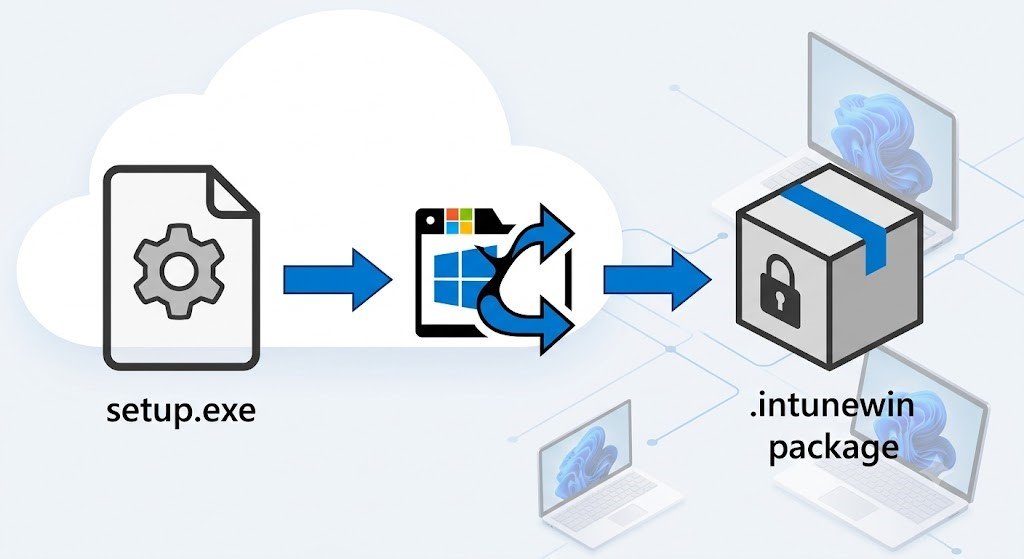
A Win32 application is a traditional Windows desktop application that is packaged and deployed through Microsoft Intune using the .intunewin file format. This packaging format enables Intune to securely distribute applications, monitor installation status, apply detection rules, and manage software updates on Windows devices.
Unlike Microsoft Store applications, Win32 applications support custom installers such as:
- MSI installers
- EXE installers
- Batch scripts
- PowerShell scripts
- Custom installation packages
Before deployment, the installation files must be converted into an .intunewin package using the Microsoft Win32 Content Prep Tool. Once packaged, the application can be uploaded to Intune and assigned to users or device groups.
This deployment method provides administrators with greater flexibility and control over software installation, making it the preferred option for most enterprise desktop applications.
Common Examples of Win32 Applications
The following applications are commonly deployed as Win32 apps through Microsoft Intune.
| Application | Installer Type | Supports Intune Deployment |
| Google Chrome | EXE | Yes |
| Adobe Acrobat Reader | EXE/MSI | Yes |
| Notepad++ | EXE | Yes |
| 7-Zip | MSI | Yes |
| Visual Studio Code | EXE | Yes |
| VLC Media Player | EXE | Yes |
Benefits of Deploying Win32 Applications with Intune
Deploying Win32 applications through Microsoft Intune provides several advantages for IT administrators and organizations.
Centralized Application Management
Administrators can deploy applications from a single cloud-based console without requiring direct access to each device.
Remote Deployment
Applications can be installed on devices regardless of their physical location, making Intune an excellent solution for remote and hybrid workforces.
Flexible Deployment Options
Intune supports both
required and Available deployments. Required deployments install applications automatically, while Available deployments allow users to install software from the Company Portal.
Advanced Detection Rules
Detection rules help Intune determine whether an application is already installed, preventing unnecessary reinstallations and improving deployment accuracy.
Installation Monitoring
Administrators can monitor installation progress, identify failed deployments, and review detailed status reports from the Intune admin center.
Support for Enterprise Applications
Most legacy desktop applications can be packaged and deployed as Win32 applications, making Intune suitable for organizations transitioning from traditional software deployment solutions.
Prerequisites for Deploying Win32 Applications
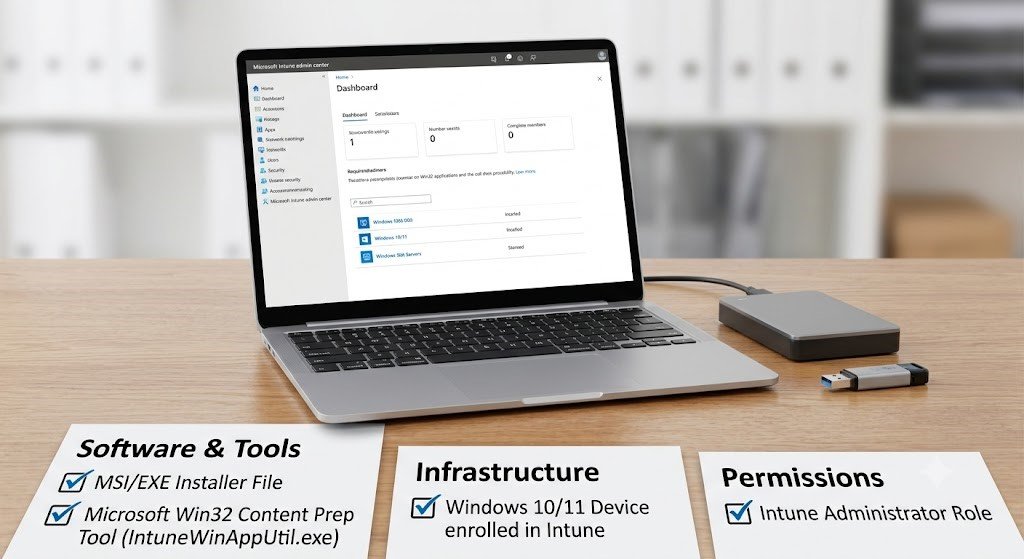
Before deploying a Win32 application through Intune, ensure the following requirements are met.
| Requirement | Description |
| Microsoft Intune License | Required to manage devices and applications |
| Windows Device | Windows 10 or Windows 11 enrolled in Intune |
| Intune Administrator Permissions | Required to create and assign applications |
| Application Installation Files | MSI or EXE installer |
| Microsoft Win32 Content Prep Tool | Used to create the .intunewin package |
In addition, make sure the application installer has been tested manually before packaging it for deployment. Verifying that the installer works correctly outside of Intune helps reduce deployment failures later.
How to Prepare a Win32 Application for Intune
Before you can deploy a traditional Windows application through Microsoft Intune, you must package it into the .intunewin format. Microsoft provides the Win32 Content Prep Tool (IntuneWinAppUtil.exe) for this purpose.
The tool compresses the application source files and generates a package that Intune can upload and distribute to managed Windows devices.
Files You Need
Before creating the package, make sure you have the following:
- The application installer (MSI or EXE)
- Any additional files required during installation
- Microsoft Win32 Content Prep Tool (IntuneWinAppUtil.exe)
- A dedicated folder containing all installation files
Best Practice: Place all installation files in a single folder before running the packaging tool. This ensures any supporting files are included in the final package.
Example Folder Structure
| Folder | Contents |
| C:\Apps\7-Zip | 7z2301-x64.exe |
| C:\Apps\Notepad++ | npp.8.x.Installer.x64.exe |
| C:\Apps\AdobeReader | Setup.exe and supporting files |
.Convert the Application to an .intunewin Package
Once your installation files are ready, you can package them using the Win32 Content Prep Tool.
Step 1: Open Command Prompt
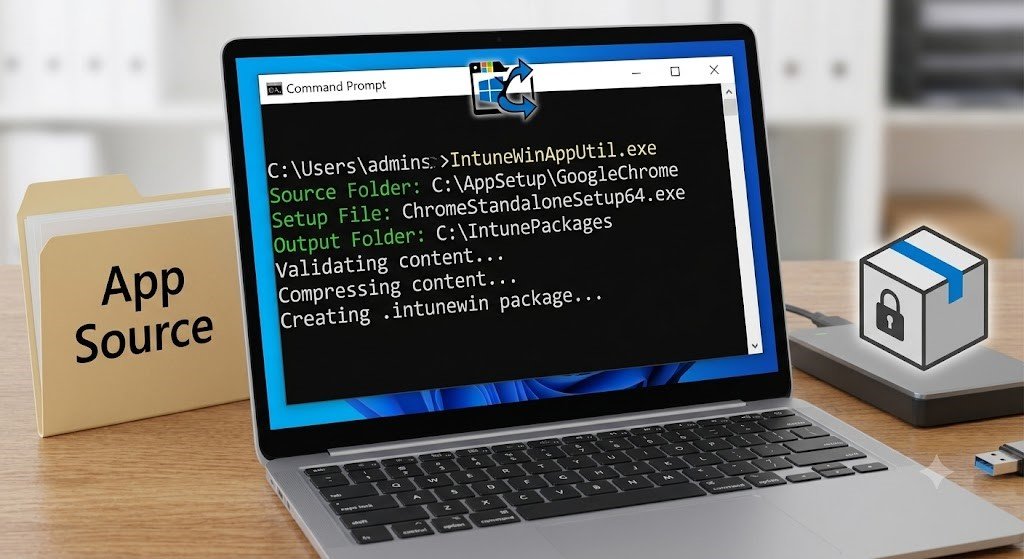
Launch Command Prompt as an administrator and navigate to the folder containing IntuneWinAppUtil.exe.
Screenshot Suggestion: Command Prompt opened in the directory containing IntuneWinAppUtil.exe.
Step 2: Run the Packaging Tool
Execute the following command:
IntuneWinAppUtil.exe
The tool will prompt you for three pieces of information:
- Source Folder: Folder containing the application installer.
- Setup File: The installer file (EXE or MSI).
- Output Folder: Location where the generated .intunewin package will be saved.
- How to Deploy a Win32 Application via Intune
After creating the package, the next step is uploading it to Microsoft Intune.
Step 1: Sign in to the Intune Admin Center
Open the Microsoft Intune Admin Center and sign in using an account with Intune administrator permissions.
Navigate to:
Apps → Windows → Add
Step 2: Select the App Type
From the App type drop-down menu, select:
Windows app (Win32)
Click Select to continue.
Step 3: Upload the .intunewin Package
Click Select app package file, browse to the generated .intunewin file, and upload it.
After the upload completes, Intune automatically extracts package metadata.
Click OK, then Next.
Step 4: Configure App Information
Provide the application details that users will see in the Company Portal.
Complete fields such as:
| Field | Example |
| Name | 7-Zip |
| Description | File archiving software |
| Publisher | Igor Pavlov |
| Category | Utilities |
| Logo | Optional |
Accurate application information helps users identify the correct software when browsing the Company Portal.
Step 5: Configure Program Settings
Specify the commands Intune should use during installation and removal.
Typical settings include:
| Setting | Example |
| Install command | 7z2301-x64.exe /S |
| Uninstall command | “%ProgramFiles%\7-Zip\Uninstall.exe” /S |
| Install behavior | System |
| Device restart behavior | Determine behavior based on return codes |
Always verify the silent installation switches provided by the software vendor before deployment.
Step 6: Configure Requirements
Requirement rules determine which devices are eligible to receive the application.
Common requirements include:
- Windows 10 or Windows 11
- 64-bit operating system
- Minimum operating system version
- Available disk space (if applicable)
These rules prevent unsupported devices from attempting the installation.
Step 7: Configure Detection Rules
Detection rules are one of the most important parts of a successful Win32 deployment.
After installation, Intune evaluates these rules to verify whether the application has been installed successfully.
Detection methods include:
- MSI Product Code
- File detection
- Registry detection
- Custom PowerShell script
For MSI installers, using the automatically detected MSI Product Code is generally the most reliable option.
For EXE installers, administrators often configure file or registry detection rules.
Step 8: Configure Dependencies and Supersedence (Optional)
If your application depends on another application, configure dependencies so Intune installs the required software first.
Similarly, Supersedence allows one application to replace or upgrade another version automatically.
For example:
| Existing Version | New Version |
| Adobe Reader 2024 | Adobe Reader 2025 |
| Visual Studio Code 1.90 | Visual Studio Code 1.95 |
Using these features helps automate software upgrades and maintain consistent application versions across managed devices.
Step 9: Assign the Application
Assignments determine which users or devices receive the application.
Common assignment options include:
- Required – Automatically installs the application.
- Available for enrolled devices – Users install it manually from the Company Portal.
- Uninstall – Removes the application from targeted devices.
Select the appropriate Microsoft Entra ID group and configure the desired assignment type. After reviewing the settings, click Create to publish the application.
Error! Filename not specified.
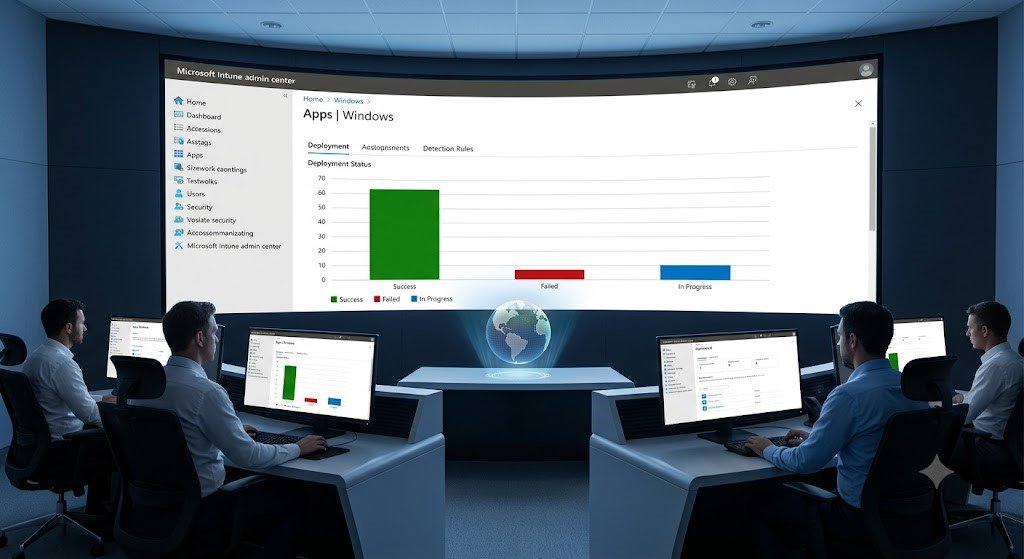
Step 10: Monitor the Deployment
Once deployment begins, monitor its progress from the Intune Admin Center.
Navigate to:
Apps → Windows → Select your application → Device install status
Here you can review:
- Successful installations
- Failed installations
- Pending installations
- Devices awaiting synchronization
Monitoring deployment status allows administrators to quickly identify and resolve issues before they affect end users.
Frequently Asked Questions (FAQs)
1. What is a Win32 application in Microsoft Intune?
A Win32 application in Microsoft Intune is a traditional Windows desktop application (such as an EXE or MSI installer) that is packaged into the .intunewin format using the Microsoft Win32 Content Prep Tool. This package can then be deployed, managed, and monitored through the Intune Admin Center.
2. What is the IntuneWinAppUtil tool used for?
The IntuneWinAppUtil (Win32 Content Prep Tool) is used to convert application installation files into the .intunewin package format required by Microsoft Intune. It compresses the source files and prepares them for cloud deployment.
3. Can I deploy both MSI and EXE applications using Intune?
Yes. Microsoft Intune supports deploying both MSI and EXE installers as Win32 applications. However, you must provide the correct silent installation and uninstall commands for successful deployment.
4. Why are detection rules important for Win32 applications?
Detection rules allow Intune to verify whether an application has been successfully installed on a device. Incorrect detection rules can cause installation failures or repeated installation attempts, making them one of the most critical parts of the deployment process.
5. How can I troubleshoot a Win32 application installation failure?
Start by reviewing the Intune Management Extension logs, verifying the install and uninstall commands, checking detection and requirement rules, confirming application assignments, and reviewing the device’s installation status in the Intune Admin Center. These steps help identify the root cause of most deployment issues.
6. Can users install Win32 applications themselves?
Yes. If the application is assigned as Available for enrolled devices, users can install it from the Company Portal without administrator assistance. If it is assigned as Required, Intune installs it automatically on the targeted devices.
7. Which Windows devices support Win32 app deployment?
Win32 applications can be deployed to Windows 10 and Windows 11 devices that are enrolled in Microsoft Intune and meet the configured requirement rules.
8. What are some best practices for deploying Win32 applications?
Test the installer manually before packaging it, use reliable detection rules, verify silent installation commands, organize source files properly, monitor deployment reports regularly, and DO DEV testing, UAT testing then pilot deployments with a small group of devices before rolling them out organization-wide.
Conclusion
Win32 applications are a powerful feature of Microsoft Intune that enable IT administrators to deploy and manage traditional Windows desktop applications from a centralized cloud-based platform. By packaging applications into the .intunewin format, organizations can automate software deployment, enforce installation policies, monitor deployment status, and simplify application lifecycle management across managed Windows devices.
A successful deployment depends on careful preparation, including using the correct installation commands, configuring accurate detection rules, and assigning applications to the appropriate user or device groups. Monitoring deployment reports and reviewing Intune Management Extension logs can also help quickly resolve installation issues and improve overall reliability.
By following the steps and best practices outlined in this guide, administrators can confidently deploy Win32 applications through Microsoft Intune while minimizing installation failures and ensuring a consistent software experience for end users.